Oracle Database 26ai Free (Oracle
Linux 10) by metabloc
Welcome to your
Oracle Database 26ai Free deployment solution by metabloc. This stack was
designed to be as streamlined as possible, with the least number of steps
required to get you up and running quickly. Please follow the directions
closely to ensure success. It is recommended to get the product you purchased
running per this documentation first. Then you have the option to customize
your solution to your requirements.
These
instructions for our stack assume the following:
·
Basic
understanding of the AWS console
·
Intermediate
skill level and/or experience with Oracle Linux and Oracle database
·
Remote access SSH
client, such as Putty, and how to create a ppk file from an AWS PEM file. These
credentials will allow you to connect to your new EC2 instance in your AWS
availability zone
Preinstalled Software
·
Oracle
Linux 10.1
·
Oracle
Database Free 23.26
·
Oracle
REST Data Services 25.3
·
Oracle
SQLcl 24.4.1
·
Oracle
APEX 24.2
·
JDK
21.0.5
License
This
software is licensed under the Oracle Free Use Terms and Conditions
Getting
Started
Connect to
your EC2 Instance using an SSH Client such as putty, as the ec2-user. More information
about how to do this is here:
https://docs.aws.amazon.com/AWSEC2/latest/UserGuide/connect-linux-inst-from-windows.html
Configuration Information
Oracle Home : /opt/oracle/product/26ai/dbhomeFree
ORDS/SQLDeveloper Web : http://[EC2 Instance IP]:8080/ords/sql-developer
APEX : http://[EC2 Instance IP]:8080/ords
SQLcl : localhost:1521/freepdb1
Database Information
Oracle SID : free
Pluggable DB : freepdb1Database
Access
Operating System
authentication with the oracle Linux user is
enabled. Use this account to reset the SYS, SYSTEM, and any other database
accounts.
Sample schemas have
been preloaded in the freepdb1 database
(HR, HRREST, CO, SH).
The precreated PDB freepdb1 database and CDB free can be accessed
using the sqlcl client on the EC2 instance, the SQL Developer Web client, or
using an Oracle client such as SQL Developer on your PC or another EC2
Instance. Ensure TCP Port 1521 is enabled in
your AWS Security Group configuration to allow this connection.
To connect from the
sqlcl client, on your SSH client, switch to the oracle user
sudo su - oracle
Use SQLcl to connect to the precreated free container
database as sysdba and switch to the freepdb1 pluggable database:
sql / as sysdba
SQL> alter session set container = freepdb1;
To reset any database user passwords, use the following:
SQL> alter user [username] identified by "[newpassword]" account unlock;
SQLcl access to the
precreated PDB freepdb1 from a terminal window
sql hr/[password]@localhost:1521/freepdb1
SQLcl access to the
CDB free
sql system/[password]@localhost:1521/free
From a web browser:
- Launch APEX
- http://[EC2 Instance IP]:8080/ords
- Launch SQL Developer Web
- HR is the only schema enabled
- http://[EC2 Instance IP]:8080/ords/sql-developer
Ensure TCP Port 8080 is enabled in your AWS Security Group
configuration to allow connection from your web browser’s IP address.
APEX Application
Information
To develop an APEX app against the HR
schema, visit http://[EC2 Instance IP]:8080/ords/apex and use the APEX Builder
login page for the HR_DEV workspace with credentials: HR_ADMIN / oracle
To manage the APEX instance, visit
http://[EC2 Instance IP]:8080/ords/apex, scroll to the bottom of the APEX
Builder login page and click the Administration link to sign in to
Administration Services with the ADMIN user.
Connect to the freepdb1 pluggable
database to reset the ADMIN Apex user password with the apxchange.sql script.
From your SSH
client, switch to the oracle user
sudo su - oracle
Connect to the free container
database and switch to the freepdb1 pluggable database, and run the APEX
password change script apxchpwd.sql:
The APEX directory is /home/oracle/apex
and APEX Images directory /home/oracle/apex_images.
The ORDS
directory is /home/oracle/ords and ORDS config directory
/home/oracle/ords_config
AWS Elastic IP
Address Allocation
It is strongly
recommended that you create an AWS elastic IP address associated to this new
EC2 build instance. This will allow you to start and stop without having to
update public IP address connection information.
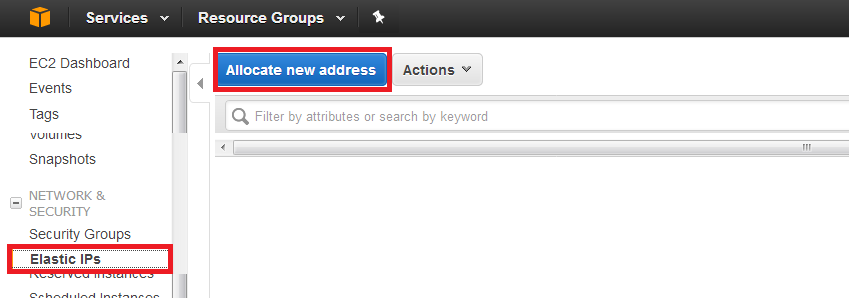
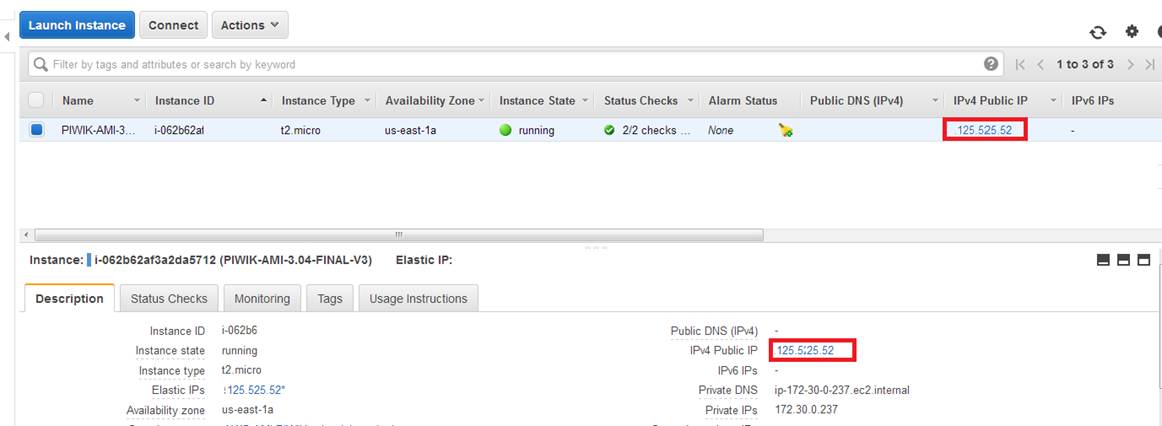
AWS Public IP
Address Setting
AWS
Security Group Configuration
Enable SSH, HTTP,
HTTPS and SQL*Net from your client IP to the EC2 Instance IP
SSH : 22:22
HTTPS : 443:443
HTTP : 80:80
HTTP : 8080:8080
SQL*Net : 1521:1521